How to Show Your Customer the Mug Before You Make It
Sample mug, Photoshop or Canva mockup, 3D mockup image or video, and 3D link: what each one shows your customer and when to use it.

When my wife and I ran Necas Lovers, a small mug shop in a cramped bedroom, we showed customers their mug with a very simple mockup: the design pasted flat onto a photo of three mugs.
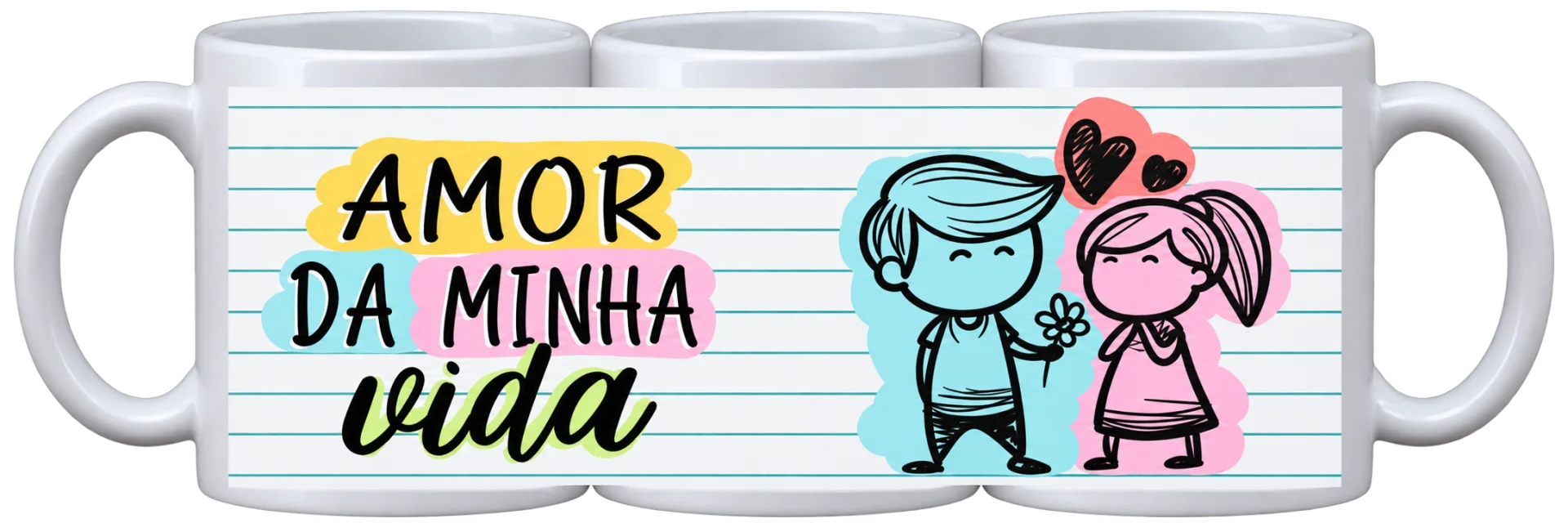
As you can see in the image above, the design didn't follow the curvature, and it was hard to imagine how the product would actually look.
When the first version of Rapid Mockup was ready and we started sending a video of the mug spinning in 3D, a customer asked us something we didn't expect: "So the mug is already done?" (the whole story is in How Rapid Mockup Got Its Start).
What the customer wants to check
Before approving the order, the customer wants to know if the name is spelled right, if the photo is the size they pictured, if the colors match, and so on.
On products like the 325 ml porcelain mug, the print area is cylindrical, so a photo from the front shows only part of the design. In that case, you usually need several photos or a video for the customer to see the whole print.
Below, I'll go through four ways to show the mug to your customer before you make it, and how each one solves part of the problem.
1. A real sample mug
This option only makes sense when you sell ready-made designs (for example, where only the customer's name or photo changes, so you can keep a generic sample mug on hand), or for very large orders where the cost of a sample is justified.
Basically, you make a mug with the design, take a photo or record a short video, and send it to the customer. It's the only way to show the color exactly as it comes out in print.
The problem is the cost: each sample uses up a mug and production time.
So this isn't a good fit for products with a fully custom print, because every sample would need a new mug.
This kind of real sample is very common when you buy packs of ready-made designs, where the designer who creates them already provides real photos or videos of the print on an actual product. Even then, a mockup still matters if the customer wants to see the print with changes (name, photo, etc.) or from angles the available photos or videos don't show.
2. A Photoshop or Canva mockup
This is usually the way most people learn first: putting the design on a photo of the product.
In Photoshop, the mockup is a PSD file (built beforehand by someone, usually a professional designer) with a photo of the mug and a smart object where the design goes. You replace the contents of the smart object with your design, and Photoshop keeps the warp that makes the design follow the curvature of the mug (Adobe help).
Back at Necas Lovers, it was the best option out there, but Photoshop was expensive, slow and too heavy for our laptop. The need for a light, practical alternative is what gave rise to Rapid Mockup.
Canva, on the other hand, keeps the mockups in the same editor where you create your designs, and the free plan lets you make up to 2,500 mockups (Canva plans). In the test we ran on November 16, 2026, Canva's mockup was a pre-rendered video or image, with the design placed in a fixed spot, and there was no way to see the mug from other angles.
If you already design everything in Canva and the mug is just one more piece of your material, its mockups work really well.
Usually, this kind of mockup produces a single static image of the mug, showing one angle. To show other sides, you need to create new images with the mug positioned differently (and they don't always match the same mockup or come in the same file or scene).
There are cases where Photoshop or Canva produce a video, but they're rarer for objects with curves or complex shapes. The hard part isn't using them, it's building the original mockup file: it has to be set up frame by frame, with a lot of care so the design doesn't end up distorted or misaligned.
On the other hand, these mockups, especially in Photoshop, usually have very high visual quality, with true-to-life colors and sharp details, which helps show what the final product will look like.
3. A 3D mockup as an image or video
In a 3D mockup generator, the mug (or any other product) is represented entirely in digital form (almost like a sculpture made on the computer). You upload the design, it follows the curvature of the mug, and you can choose any angle, as well as change the environment and lighting before downloading.
With a single design, you can create many different images or videos of the mug spinning, so it can be seen from any side.
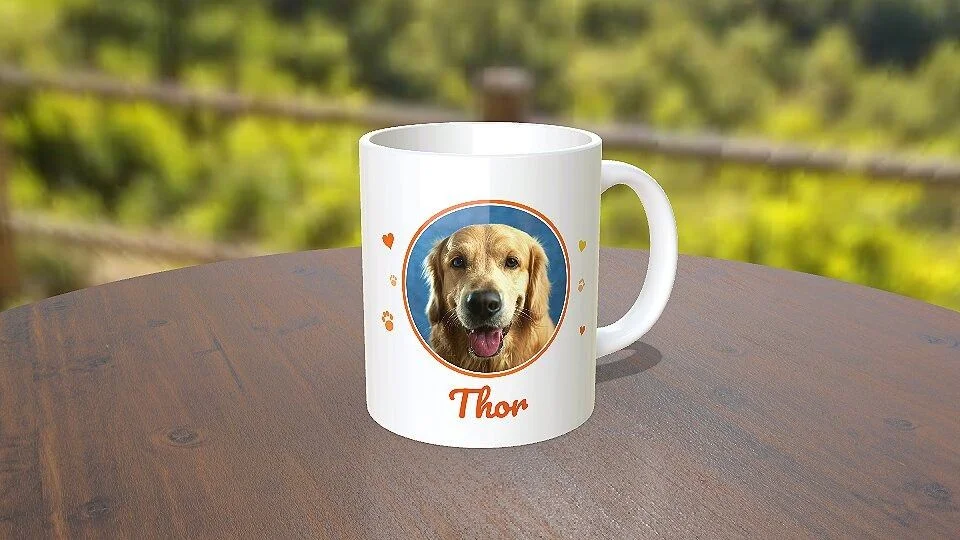
Another advantage of a 3D mockup is that the product's shape doesn't matter. The print is always applied correctly, following the curvature and details of the object. For example, on a T-shirt with folds, the print adjusts correctly, even in an animated video.
Rapid Mockup falls into this category. Because it has a digital version of the product, it can create high-resolution images and videos (up to 4K) with thousands of different setups, so you don't have to worry about finding different angles or scenes of the same product.
It takes just three simple steps: choose the product (for example, a mug), upload your design and download the mockup, all on the same screen.
On top of that, the files come out ready to send by text or WhatsApp or to post to Instagram Stories and Reels. You can try it in the Rapid Mockup 3D mug mockup without creating an account (every mockup you make can be used commercially, even on our free plans).
If you use Mug3D, which is also a free 3D mug editor in the browser, its terms only allow personal, non-commercial use. See the full comparison with Mug3D. And the list of the best 3D mockup generators compares other tools, feature by feature.
4. A 3D link the customer opens on their phone
The 3D link is one of the most advanced kinds of mockup available today. With it, your customer sees the mug in 3D on their own phone. They can spin it, zoom in and check the design from any side of the product.
A 3D link opens in the browser on any phone, tablet or computer, with nothing to install: just send it by text, email or WhatsApp, and your customer sees how the mug will look from every side.
If the customer asks you to change the name or the photo, you update the design in the editor and send a new link, without using up a single mug.
There's also an interesting and powerful effect here, which we've seen with our own customers: when someone sees and interacts with a mug in 3D, it creates surprise and delight, and the product feels more valuable. Our customers report that it helps them close sales more easily and keep buyers coming back.
In fact, according to Shopify, merchants using 3D commerce have reported an average 94% increase in conversions compared to relying on photos alone.
Here are some comments from people who sent the 3D link to their customers and had a good experience (translated from Portuguese):
“I just tried it, sent the link to a customer and she loved the experience. She said she'd never seen anything like it!” @kanekadasbrindes
“I win every customer when I present the product in 3D” @sublimatec.personaliza
A 3D mockup, in this case, stops being just a way to visualize the product and becomes a tool that sets your product apart from the competition, leading to more sales and more repeat customers.
Rapid Mockup's free plan lets you create up to five 3D links a month, along with 30 mockups and 10 videos (on the free plan the link stays live for 30 days, which is enough time for the customer to review the product).
Keep in mind that, like any other mockup viewed on a screen (whether an image or a video), the 3D link doesn't replace a sample for checking colors and print details.
Which one to use
For everyday quotes, I recommend sending the 3D link along with the image or video, so the customer has a second option (and something to keep for reference).
If the order is very large or the logo color has to match perfectly, my recommendation is to have the customer approve the design through the link and then make the sample at the end.
If you're creating material in Canva, its mockups may be enough to present the mug, without making videos or a 3D link. Just keep in mind that it's a 2D view, and the customer won't be able to interact with the mug the way they would with a 3D link.
If you're on one of our paid plans, Rapid Mockup has a browser extension that works as an (unofficial) integration with Canva, so you can see the 3D mockup while you design, right inside Canva.
To see how it looks with your design, open the mug in Rapid Mockup. You can try it without creating an account, and to download without the watermark, just create a free account.
References
- Adobe help helpx.adobe.com
- Shopify shopify.com
- Mug3D terms of use mug3d.com